Method 1:
1.
In Outlook Desktop, click File > Manage COM
Add-ins.
2. Expand the Options for the Microsoft Teams Meeting Add-in for Microsoft Office and select Do not monitor this add-in for the next 30 days. If that option is not available, then select Always enable this add-in. Then select Apply and Close.
3.
If the steps above did not solve the issue, re-enable the add-in
from the Disabled Items dialog. To re-enable the Teams Meeting add-in:
1.
In Outlook, select File > Options > Add-ins > Manage,
2. Select “Disabled items” and then Go.
3.
If you see Teams listed under
Disabled Items, select it and then select Enable.
4.
Restart Outlook and confirm if the add-in is working.
Reregister the Teams Add-in DLL File
The “Microsoft.Teams.AddinLoader.dll” file helps the
Teams Meeting add-in work smoothly in Outlook. Re-registering this Dynamic Link
Library (DLL) file can restore the Teams Meeting add-in to your Outlook
application.
It’s a lengthy but straightforward process. Close
Microsoft Teams and Outlook and follow the steps below to re-register the
“Microsoft.Teams.AddinLoader.dll” file.
- First, you need the path/location of the
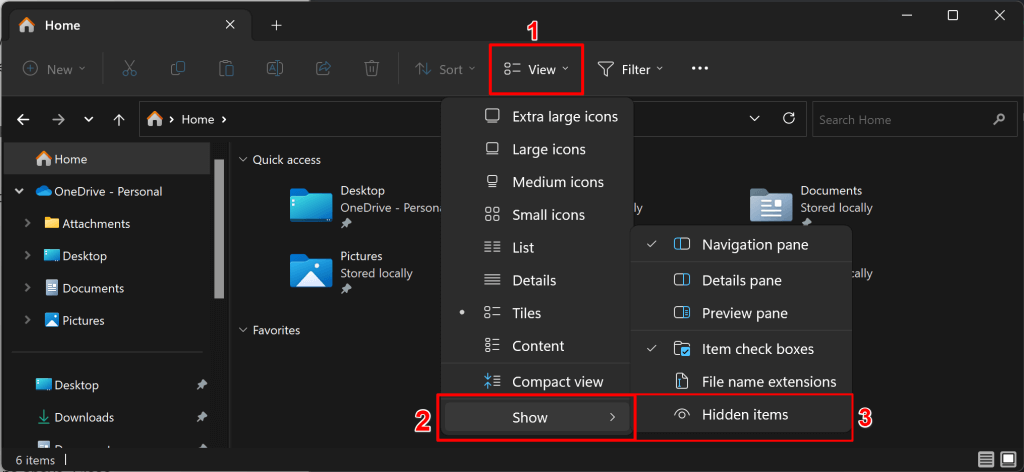
Microsoft.Teams.AddinLoader.dll file on your PC. Open the File Explorer
(Windows key + E), select View on the top menu,
choose Show, and select Hidden items.
- Open C:\Users\Username\AppData\Local\Microsoft\TeamsMeetingAddin\1.0.23241.2\x64
- Open the x86 folder if you have a
32-bit PC or the x64 folder if your PC is 64-bit. See 4 Ways To Tell If You’re Using 32-Bit Or 64-Bit
Windows.
- You should find the
“Microsoft.Teams.AddinLoader.dll” file in this folder. Copy the file path
in the File Explorer’s address bar.
- Open the Start menu, type cmd in the
search box, and select Run as administrator below the Command
Prompt app.
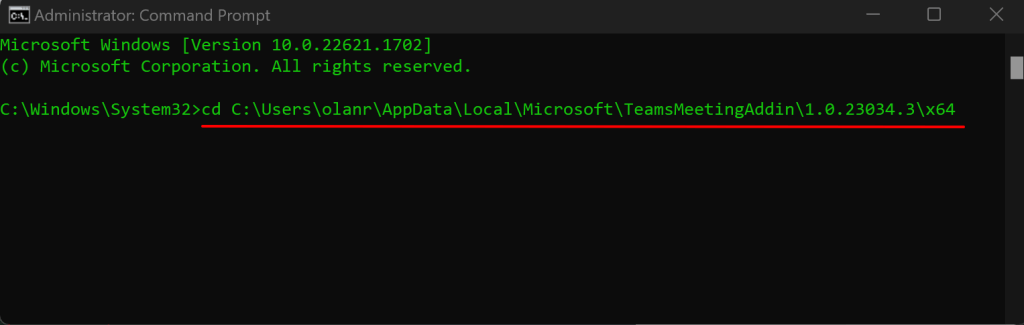
- Type cd, press the Spacebar, paste the
Microsoft.Teams.AddinLoader.dll file path (see step #7) and
press Enter. The command should look like the one below.cd
C:\Users\username\AppData\Local\Microsoft\TeamsMeetingAddin\1.0.23034.3\x64
7.
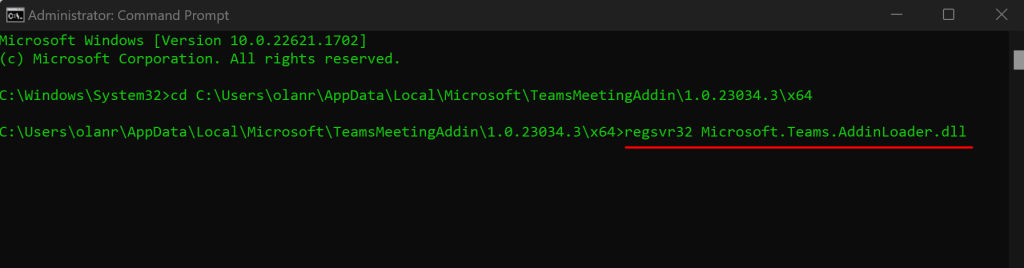
Next, paste regsvr32 Microsoft.Teams.AddinLoader.dll on the following
line and press Enter.
7.
You should see a “DllRegisterServer in
Microsoft.Teams.AddinLoader.dll succeeded.” message on your screen.
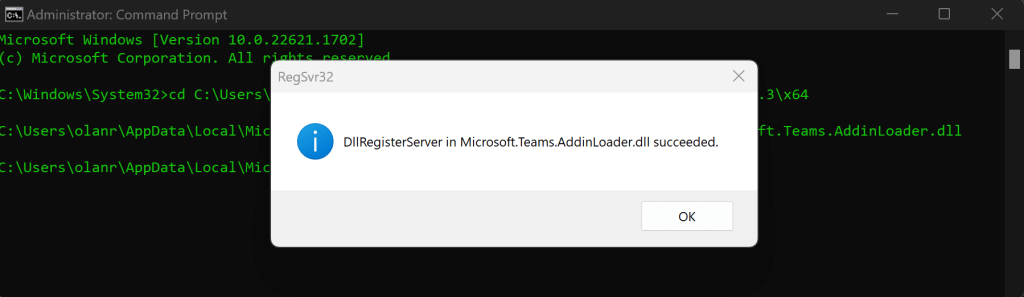
- Select OK, close the Command Prompt window,
and check if the Teams Meeting option is now available in Outlook.
Update Registry Editor Keys
Another measure to help prevent the Teams Meeting add-in from being
disabled by Outlook is to add this registry key:
- Open Registry Editor.
- Go to Registry Computer\HKEY_CURRENT_USER\Software\Microsoft\Office\16.0\Outlook\Resiliency\DoNotDisableAddinList
- Create a new DWORD (32-bit) value:
- Name: TeamsAddin.FastConnect
- Value: 1
No comments:
Post a Comment