How to enable Outlook Teams Addin

Method 1:

1.      In Outlook Desktop, click File > Manage COM Add-ins.

2.     Expand the Options for the Microsoft Teams Meeting Add-in for Microsoft Office and select Do not monitor this add-in for the next 30 days.  If that option is not available, then select Always enable this add-in. Then select Apply and Close.

3.      If the steps above did not solve the issue, re-enable the add-in from the Disabled Items dialog. To re-enable the Teams Meeting add-in:

1.      In Outlook, select File Options Add-ins Manage,

2.      Select “Disabled items” and then Go.

3.      If you see Teams listed under Disabled Items, select it and then select Enable.

4.      Restart Outlook and confirm if the add-in is working.


Method 2: 

Reregister the Teams Add-in DLL File

The “Microsoft.Teams.AddinLoader.dll” file helps the Teams Meeting add-in work smoothly in Outlook. Re-registering this Dynamic Link Library (DLL) file can restore the Teams Meeting add-in to your Outlook application.

It’s a lengthy but straightforward process. Close Microsoft Teams and Outlook and follow the steps below to re-register the “Microsoft.Teams.AddinLoader.dll” file.

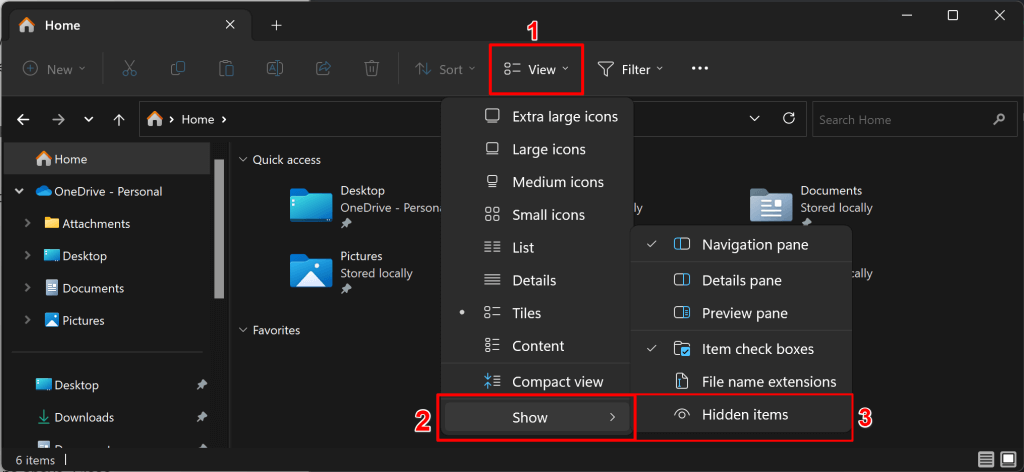
  1. First, you need the path/location of the Microsoft.Teams.AddinLoader.dll file on your PC. Open the File Explorer (Windows key + E), select View on the top menu, choose Show, and select Hidden items.

  1. Open C:\Users\Username\AppData\Local\Microsoft\TeamsMeetingAddin\1.0.23241.2\x64
  2. Open the x86 folder if you have a 32-bit PC or the x64 folder if your PC is 64-bit. See 4 Ways To Tell If You’re Using 32-Bit Or 64-Bit Windows.


  1. You should find the “Microsoft.Teams.AddinLoader.dll” file in this folder. Copy the file path in the File Explorer’s address bar.
  2. Open the Start menu, type cmd in the search box, and select Run as administrator below the Command Prompt app.

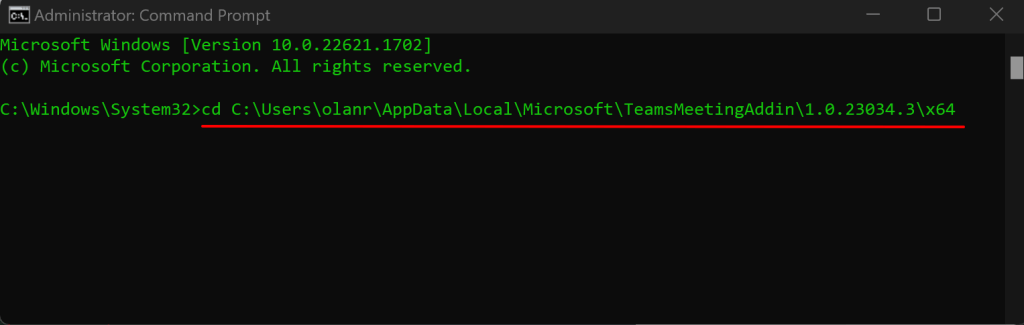
  3. Type cd, press the Spacebar, paste the Microsoft.Teams.AddinLoader.dll file path (see step #7) and press Enter. The command should look like the one below.cd C:\Users\username\AppData\Local\Microsoft\TeamsMeetingAddin\1.0.23034.3\x64

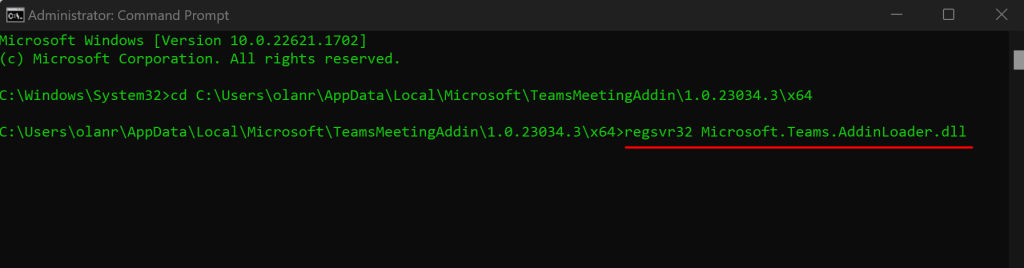
       7.    Next, paste regsvr32 Microsoft.Teams.AddinLoader.dll on the following line and press Enter.


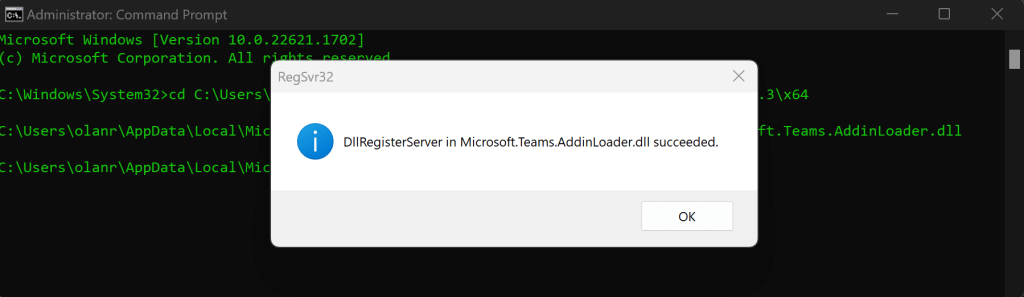
7.       You should see a “DllRegisterServer in Microsoft.Teams.AddinLoader.dll succeeded.” message on your screen.

  1. Select OK, close the Command Prompt window, and check if the Teams Meeting option is now available in Outlook.

Method 3:

Update Registry Editor Keys


Another measure to help prevent the Teams Meeting add-in from being disabled by Outlook is to add this registry key:


  1. Open Registry Editor.
  2. Go to Registry Computer\HKEY_CURRENT_USER\Software\Microsoft\Office\16.0\Outlook\Resiliency\DoNotDisableAddinList
  3. Create a new DWORD (32-bit) value:
    1. Name: TeamsAddin.FastConnect
    2. Value: 1

create shared mailbox using PowerShell


1.      Run below command in office 365 PowerShell to create shared mailbox.


Set-Mailbox –identity ‘username@xyz.com’ -Type shared


2.      Run below command in office 365 PowerShell to assign audit log age.


Set-Mailbox -identity username@xyz.com -AuditEnabled $true -AuditLogAgeLimit 180

Extract mailbox as PST


Steps to extract copy of emails from the mailbox.

·       Head over to https://purview.microsoft.com/ediscovery

·       Click Ediscovery => Content Search and click the plus icon to create a “Create a Search”.

·       Give the search a name and a description if desired and click “Create


·       Under the Source section select “Add source”.


·       specify the mailboxes to search. Use the search box to find user mailboxes.


·       Once required user is selected, click “Manage”.


·       Only select “Mailboxes” section and click “save”.


·       Review the search settings (and edit if necessary), and then click “Run Query” to start the search.

·       Select Process Manager -> wait for search completion.


A screenshot of a computer

AI-generated content may be incorrect.


·       Once search got completed -> click on Export Results.


·       Enter export name

·       Select “Index items that match your search query and partially indexed items

·       Select “Perform advanced indexing on partially indexed items


A screenshot of a export page

AI-generated content may be incorrect.


·       Deselect “Include Teams and Viva Engage conversations”.

·       Deselect “Organize conversations into HTML transcript

·       Deselect “Access links (cloud attachments) in messages


A screenshot of a screen

AI-generated content may be incorrect.


·       Click “Export”


·       Goto -> Exports Tab-> Select your export.


·       Once Export has completed start downloading the results


·       Click on Download.

·       Wait for Download to finish.


Steps to Open PST file into Outlook


·       Open Outlook, goto “File” section, Click “Open and Export”, then click “Open Outlook Data File

Upload PST emails to Mailbox


1.     Download the PST file from the mentioned link. (Keep the PST in user One Drive for future safe keeping)

2.     Open Outlook.

3.     Choose the File tab in the ribbon.

4.     Choose “Open & Export”

5.     Click on “Import/Export”

1.     Select “Import from another program or file”.

2.     Click Next.

3.     Select "Outlook Data File(.pst)” option.

4.     Click next.

5.     Browse to PST file location and select the file.

6.     Click next.

Restore emails from soft deleted mailbox


1.      Run this command to get the necessary information about the mailbox:

Get-Mailbox -InactiveMailboxOnly | FL Name,DistinguishedName,ExchangeGuid,PrimarySmtpAddress


2.      Run this command to store the mailbox to a variable.  (Identity here is the ExchangeGUID for Adam Platt and was gathered from running the previous command)


$InactiveMailbox = Get-Mailbox -InactiveMailboxOnly -Identity 12341111-8d44-46fe-a41c-55234234


3.      Run this command to restore the contents of the inactive mailbox to an existing mailbox, while specifying a top-level folder in the target mailbox in which to restore the contents from the inactive mailbox. If the specified target folder or target folder structure doesn't already exist in the target mailbox, it is created during the restore process. 

New-MailboxRestoreRequest -SourceMailbox $InactiveMailbox.DistinguishedName -TargetMailbox user@xyz.com -TargetRootFolder "user's Inbox" -AllowLegacyDNMismatch


4.      Restore the contents of the archive from the inactive mailbox to the archive of an existing mailbox, while specifying a specific folder:

New-MailboxRestoreRequest -SourceMailbox $InactiveMailbox.DistinguishedName -SourceIsArchive -TargetMailbox user@xyz.com -TargetIsArchive -TargetRootFolder "user’s Archive" -AllowLegacyDNM

                                                OR

Restore the contents of the archive from the inactive mailbox to existing mailbox inbox folder, while specifying a specific folder:


New-MailboxRestoreRequest -SourceMailbox $InactiveMailbox.DistinguishedName -SourceIsArchive -TargetMailbox user@xyz.com -TargetRootFolder "user’s Archive" -AllowLegacyDNMismatch


Outlook Search Issue - No Results Found


Step 1: Check Outlook Search Settings

  1. Open Outlook.
  2. Go to File > Options > Search.
  3. Click Indexing Options….
  4. Ensure Microsoft Outlook is listed under Included Locations. If not, click Modify and check it.
  5. Click Advanced, then under the Index Settings tab, click Rebuild to recreate the search index. This may take time depending on mailbox size.

If “Indexing Options…” is Grayed Out

  1. Press Windows + R, type services.msc, and press Enter.
  2. Locate Windows Search in the list.
  3. If it's Stopped, right-click and select Start.
  4. If it's Disabled:
    • Right-click > Properties.
    • Set Startup type to Automatic.
    • Click OK, then Start the service.

Step 2: Ensure Windows Search Feature is Enabled


  1. Open Control Panel > Programs and Features.
  2. Click Turn Windows features on or off (left pane).
  3. Ensure Windows Search is checked. If not, check it and click OK.
  4. Restart your PC if prompted.

Step 3: Additional Fixes (if issue persists)


  • Check File Indexing Permissions:
    • Navigate to your OST/PST file location (usually under C:\Users\<username>\AppData\Local\Microsoft\Outlook).
    • Right-click the file > Properties > Advanced.
    • Ensure "Allow this file to have contents indexed..." is checked.


  • Run the Windows Search Troubleshooter:
    • Go to Settings > System > Troubleshoot > Other troubleshooters.
    • Run the Search and Indexing troubleshooter.


  • Repair Outlook Data Files:
    • Run scanpst.exe (Inbox Repair Tool) to fix corrupted PST/OST files.


  • Create a New Outlook Profile:
    • Go to Control Panel > Mail > Show Profiles > Add.
    • Set up a new profile and test search functionality.

check outlook blocked sender from online powerShell


1.     Admins can run this Commands to check blocked sender from online PowerShell -


(Get-MailboxJunkEmailConfiguration as.h@xyz.com).BlockedSendersAndDomains


2.     Command to remove blocked sender -


Set-MailboxJunkEmailConfiguration -Identity "user@domain.com" -BlockedSendersAndDomains @{Remove="example@domain.com"}

Enable/Set on-prem user as remote mailbox o365

Enable-RemoteMailbox -identity user -RemoteRoutingAddress user@xyz.mail.onmicrosoft.com


Enable-RemoteMailbox -identity user -Archive 


Bulk script -

foreach($i in get-content C:\New_folder\123.txt){Enable-RemoteMailbox -Identity $i@xyz.com -RemoteRoutingAddress $i@xyz.mail.onmicrosoft.com}


Get-Content "C:\New_folder\123.txt" | Enable-RemoteMailbox -Archive

Manually migrate Distribution list from on-prem to cloud (Workaround)


Ø Delete Distribution List from On-Prem Exchange and recreate it in O365 

Ø Create an account in On-Prem AD with same display name

Ø Enable that account in on-premise Exchange as Mail-User and assign primary SMTP email address as oceanspray.mail.onmicrosoft.com

 Enable-mailuser  -identity Test_Onpremise2 -ExternalEmailAddress Test_OnPremise2@xyz.mail.onmicrosoft.com


Ø Open that account in on-premise Exchange and add new email address

Test_OnPremise2@xyz.onmicrosoft.com


Ø In O365 open properties of that DL and add new email address

Test_OnPremise2@xyz.mail.onmicrosoft.com

Issue/Error - This feature has been disabled by your administrator error in Office


This feature has been disabled by your administrator error in Office


1.       Process

When you try to perform certain actions in Microsoft Office O365, 2019, 2016, or 2013 applications, you receive the following error message: “This feature has been disabled by your administrator.”

The actions that trigger this error message may include the following:

·       On the File menu, you click Account or Office Account, and then you click Sign In.

·       On the File menu, you click Share, and then you click Present Online.

·       On Microsoft SharePoint Server or in OneDrive for Business, you click Sync Now.

In Office 2013, Office 2016, and Office 2019, this error affects connected experience. In Office 365 ProPlus, this error affects Office licensing and connected experience.

2.        Steps

Before proceeding to follow these steps take registry backup by following below steps:

1.      From the Start menu, type regedit.exe in the search box, and then press Enter.

2.      In Registry Editor, locate & click the registry key or subkey that you want to back up.

3.      Click File > Export.

4.      In the Export Registry File dialog box, select the location to which you want to save the backup copy, and then type a name for the backup file in the File name field.

5.      Click Save.


          To resolve this issue, follow these steps to modify the registry:

6.      Exit Microsoft Outlook.

7.      Start Registry Editor.

8.      In Registry Editor, locate and then click the following subkey:

HKEY_CURRENT_USER\Software\Microsoft\Office\xx.0\Common\Internet

Note: Replace xx with:

·       15 for Office 2013

·       16 for Office 2016

·       17 for Office 2019

·       18 for Office 2021 / Microsoft 365


9.      Locate and then double-click the following value: UseOnlineContent.

Note: if key is missing then please create it manually.


·       In the Value Data box, type 2, and then click OK.

·       Locate and then click the following subkey:

HKEY_CURRENT_USER\Software\Microsoft\Office\xx.0\Common\SignIn

 Note: If key is missing then please create it manually.


·       Locate and then double-click the following value: SignInOptions.

·       In the Value Data box, type 0, and then click OK.

·       Exit Registry Editor.

More Information

The UseOnlineContent setting controls users' access to the Office online features. This setting can be configured by using the following values:

  • 0 = Do not allow Office to connect to the Internet. Office applications do not connect to the Internet to access online services or to download the latest online content from Office.com. Connected features of Office are disabled.
  • 2 = Allow Office to connect to the Internet. Office applications use online services and download the latest online content from Office.com when users’ computers are connected to the Internet. Connected features of Office are enabled. This option enforces the default configuration.

The SignInOptions setting controls whether users can provide credentials to Office by using either their Windows Live ID or the user ID that was assigned by their organization (Org ID) for accessing Office 365. This setting can be configured by using the following values:

  • 0 = Both IDs allowed
  • 1 = Microsoft Account only
  • 2 = Org ID only
  • 3 = Users cannot sign in by using either ID


Support Documentation:

https://docs.microsoft.com/en-us/office365/troubleshoot/administration/office-feature-disabled